

Not every Google search starts with a typed query. Someone might take a photo of a product, upload a screenshot, or use Google Lens to find something similar. Until recently, website owners had limited visibility into how their pages performed when searches started with an image. That has changed.
On September 24, 2026, Google introduced a new “Multimodal” Search type option under Web in Google Search Console. The new report lets site owners see how their pages perform when an image is part of the search. The feature is rolling out globally.
For Shopify stores, this makes image optimization worth another look.
What Is Multimodal Search?
Multimodal search is a search where an image is part of the input.
For example, someone might see a handbag they like and use Google Lens to find similar products instead of typing “black leather handbag” into Google.
Another shopper might screenshot a pair of shoes from social media and upload the image to Google.
Google’s new Search Console reporting separates these image-based searches from traditional text-based web searches. The multimodal category includes searches made through Google Lens, Circle to Search on Android, image uploads to Google Search, and Chrome’s “Search this image” feature.
Where to Find Multimodal Data in Search Console
If the feature is available for your property, you can find it in Google Search Console as per the screenshot:
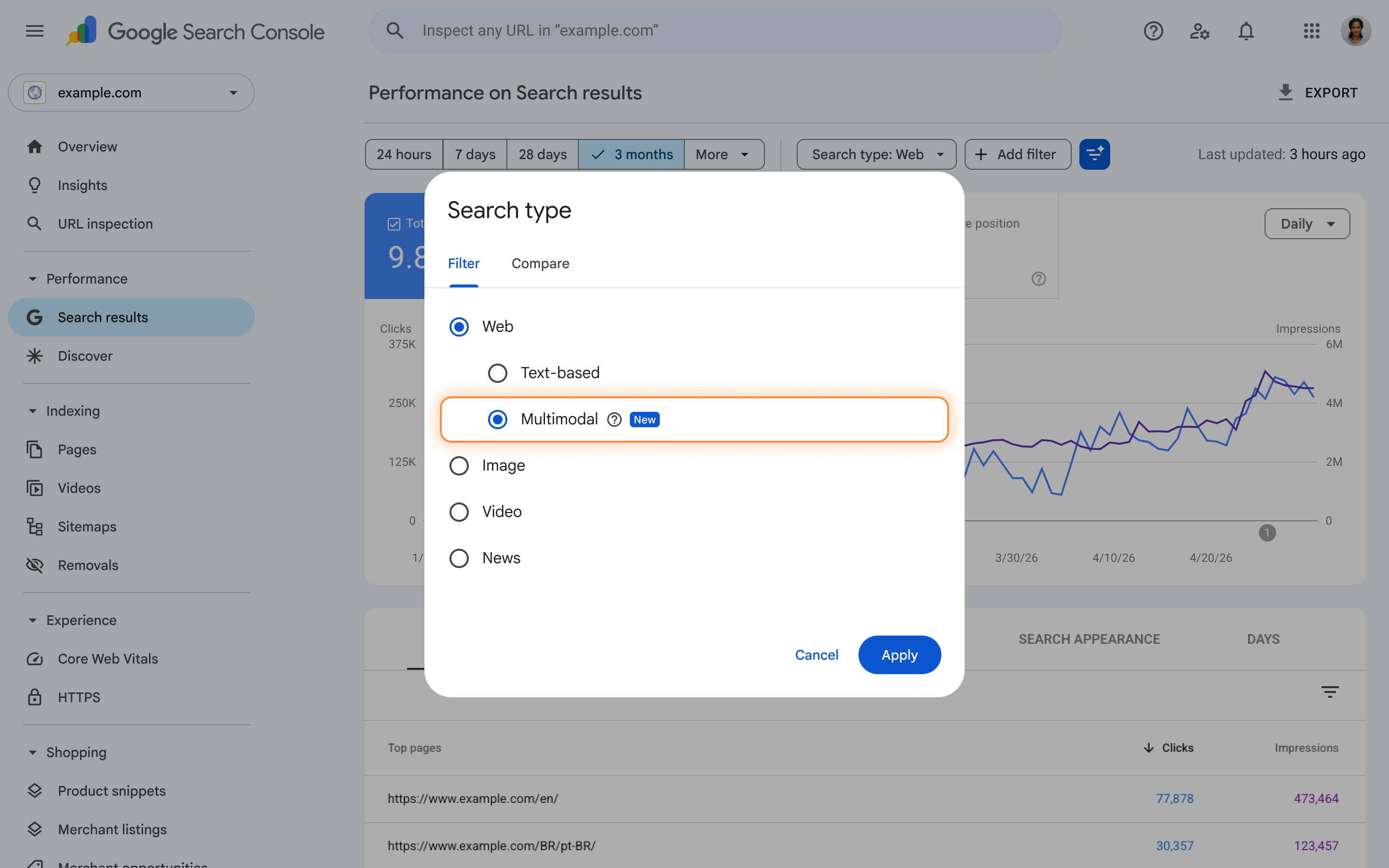
- Open your property in Search Console.
- Go to Performance → Search results.
- Open the Search type filter.
- Select Web.
- Choose Multimodal.
Google’s current Search Console documentation divides Web search into two categories: Text-based and Multimodal.
Text-based searches are traditional searches entered into Google’s search box. Multimodal searches are web searches where an image was part of the search.
You can also export the data for analysis outside Search Console.
If you don't see the Multimodal option yet, the rollout may not have reached your property. The report also only shows data when your site receives traffic from this type of search.
Multimodal Search vs. Google Image Search
These two types of search are easy to confuse, but they are different.
Google Image Search covers traffic from Google’s image-search experience.
Web → Multimodal covers web results where an image was used as part of the search.
For example:
Image search:
Someone searches Google Images for “modern wooden dining table” and clicks an image or related result.
Multimodal search:
Someone takes a photo of a dining table, uses Google Lens, and Google returns relevant web results.
The new Search Console filter lets you analyze the second type separately.
Why This Matters for Shopify Stores
Many products are naturally suited to visual search, including:
- Clothing
- Shoes
- Jewellery
- Furniture
- Home décor
- Bags
- Accessories
- Electronics
- Beauty products
A customer may see a product before knowing its brand or product name. They can take a photo or screenshot and search for it.
That makes the product image and the page around it important. Your product page should give Google enough information to understand both the image and the product.
Here are the areas to review first.
1. Write Useful ALT Text
ALT text should describe what is actually shown in the image.
Weak ALT Example: black-bag
Better ALT Example: Black leather shoulder bag with gold-tone chain strap
The second version provides more context for screen-reader users and search engines.
Keep ALT text natural. Don't turn it into a list of keywords. If the image shows a black leather shoulder bag, describe the black leather shoulder bag.
2. Control Image File Sizes
Large product images can add unnecessary weight to ecommerce pages, especially on mobile connections.
Before uploading product images, check their dimensions and file size. Use an appropriate format and avoid serving a huge image when the page only needs a smaller version.
Image compression is particularly useful for stores with large product catalogs.
The goal isn't to make every image as small as possible. It's to maintain the visual quality shoppers need without sending unnecessary data to their devices.
3. Use Descriptive Image Filenames
A filename such as:
DSC00451.jpg
doesn't provide much context.
A filename such as:
black-leather-shoulder-bag.jpg
is easier to understand and manage.
Descriptive filenames can provide additional context, but changing a filename alone won't transform search performance. Image SEO depends on the image, the page, surrounding content, and accessibility information.
4. Add Product Information Around the Image
Don't rely on the image alone.
Your product page should clearly explain what the customer is looking at. Depending on the product, include:
- Product name
- Material
- Colour
- Size
- Dimensions
- Specifications
- Available variations
- Intended use
For example, a shoe page could describe its material, available sizes, colour, and design.
This information gives shoppers useful context and helps establish the relationship between the image and the product page.
5. Make Sure Google Can Access Your Images
The basics still matter.
Important product images should be accessible to search engines, and your product pages should be crawlable.
Check for accidental blocking in:
- robots.txt
- Page-level directives
- Image URLs
- CDN configuration
- Theme code
- Lazy-loading implementations
Also check how images load on mobile. A product image isn't useful if it fails to load correctly.
What Can You Learn From Multimodal Data?
Open Web search type, then Multimodal, and look at the pages receiving impressions and clicks.
You can use the report to understand:
- Which product pages are appearing
- Which pages are receiving clicks
- Which countries generate the most activity
- Whether traffic is primarily mobile
- Which product categories are appearing
- Which pages receive impressions but few clicks
The last point can be useful.
If a product page receives impressions but few clicks, review the page itself. Look at the product image, title, description, price information, and overall search result presentation.
One Important Limitation
Multimodal searches don't provide the normal Queries dimension.
Because these searches primarily use images rather than text, specific text-query data isn't available for this traffic.
That means you won't see the exact keyword a person used. Instead, you'll work with information such as pages, performance metrics, countries, devices, and dates.
This changes how you analyze the traffic.
You're not starting with a keyword. You're starting with the page and product image.
A Simple Way to Audit Your Shopify Store
You don't need to change your entire SEO strategy because of this update. Start with the pages already receiving multimodal traffic.
Step 1: Check Your Multimodal Traffic
Go to:
Search Console → Performance → Search results → Search type → Web → Multimodal
Look at the pages receiving impressions and clicks.
Step 2: Review Those Product Pages
For each important page, check:
- Main product image
- ALT text
- Image filename
- Image dimensions
- Image file size
- Product title
- Product description
- Product specifications
- Mobile presentation
Step 3: Compare With Text-Based Traffic
Switch between:
Web → Text-based
and
Web → Multimodal
This can help you see whether the same product pages are appearing through both traditional text searches and image-based searches.
Step 4: Export the Data
Google provides an export option in the performance reports. You can use the data to build a spreadsheet or reporting dashboard.
Over time, this can give you a baseline for visual-search traffic.
How SpeedBoostr Can Help With Image Optimization
For Shopify stores with hundreds or thousands of products, manually checking every image isn't practical.
SpeedBoostr includes tools for image compression, resizing, ALT-text updates, bulk editing, and other image optimization tasks. Its current Shopify listing also includes features such as WebP conversion and lazy loading.
These tools can make basic image maintenance easier, particularly for stores with large product catalogs.
However, an image optimization app won't automatically make a product appear in multimodal search. Search visibility still depends on the relevance and quality of the page and its content.
An optimization app can help with the technical and maintenance work involved in managing a large image catalog.
What Shopify Merchants Should Do Now
There's no need to rebuild your store because of one new Search Console filter.
Instead, use the new data to see whether visual search is already bringing attention to your products.
If you have multimodal traffic, start with the pages that are already appearing. Make sure their images are:
- Clear
- Relevant
- Properly sized
- Descriptively named
- Given useful ALT text
- Accessible to search engines
Then review the rest of the product page.
Ask:
- Does the title clearly identify the product?
- Does the description explain what it is?
- Are important specifications easy to find?
- Does the page work well on mobile?
These are useful checks regardless of how someone discovers the product.
Final Thoughts
The new Web search type Multimodal report gives Shopify merchants a way to see performance from web searches where an image is part of the search.
It's still early, so don't overreact to the first numbers. Use the report as another source of performance data.
If your product pages receive multimodal impressions and clicks, review their images, page content, and technical setup. Export the data periodically to track how this traffic develops.
Image SEO has never been just about ALT text. It's about making sure the image, product page, and information around the product work together.
Now, Search Console gives you a clearer way to see whether that work is appearing in image-driven web searches.

