

A Shopify store can be well optimized today and look different a few weeks later. You add a collection, install a review app, change the homepage banner, or add another tracking script. None of those changes are unusual for e-commerce.
But each change can affect what the storefront has to load. Automatic Shopify speed optimization helps make that ongoing performance work easier to manage instead of treating speed as a one-time task.
Why Shopify Store Performance Changes Over Time
A store does not need a full redesign for its performance to change. Even regular e-commerce work adds new assets and code.
Shopify explains in its web performance guidance that apps, third-party services, analytics, theme code, images, and videos can all influence storefront performance.
Say you optimize before a sale. A week later, you add a reviews app and upload new product media. The storefront has changed, so checking Shopify site performance again makes sense.
For a broader look at the common fixes, SpeedBoostr also covers practical ways to improve your Shopify store’s loading speed.
What Is Scheduled Optimization in SpeedBoostr?
SpeedBoostr lets you schedule theme optimization instead of manually starting it every time.
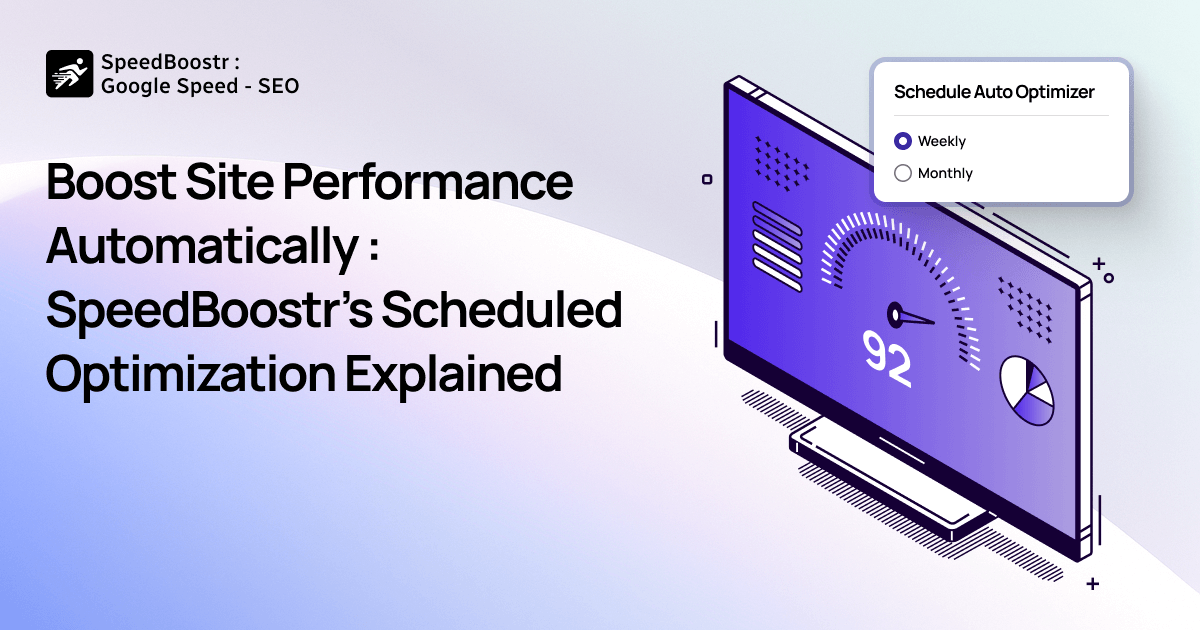
With scheduled Shopify speed optimization, you can set Theme Auto-Run to work weekly or monthly. SpeedBoostr’s current documentation also lets Advanced Plan users choose the day or date, set a time, and optionally receive an email after the optimization finishes.
The point is not to stop checking your store. It is to remove one repeated task from the routine.
What Happens During an Automatic Speed Optimization?
SpeedBoostr supports work such as CSS and JavaScript compression, image compression, lazy loading, and image optimization. These features are also listed on its current Shopify App Store page.
That matters in everyday Shopify speed optimization because shoppers may be waiting on product images, scripts, and theme files before they can properly use a page.
Images are a good example. They still need to show product details clearly, but oversized files add work for the browser. SpeedBoostr's guide to high-quality product images and website performance goes deeper into that balance.
How to Set Up Scheduled Optimization
The current SpeedBoostr process is straightforward.
- Open Settings in SpeedBoostr.
- Find Theme Auto-Run.
- Enable Auto-Run.
- Choose a weekly or monthly interval.
- Set the day, date, and time.
- Add an email notification if you want one.
- Save the settings.
This automatic theme optimization feature is currently available with the Advanced Plan.
Weekly or Monthly? Choose Based on How Your Store Changes
Weekly is not automatically better just because you run an online store. Weekly Shopify speed optimization can make sense when you regularly change
campaigns, apps, theme sections, or storefront media. A store with a stable theme and fewer changes may be better suited to a monthly schedule. The practical rule is to match the schedule to how often the storefront changes.
What to Check After Scheduled Optimization Runs
Do not judge the result only by one score. Check your main product and collection pages on mobile. Make sure images load properly, buttons respond, and content does not jump around while the page loads.
Google's Core Web Vitals guidance uses LCP for loading performance, INP for responsiveness, and CLS for visual stability. Shopify also recommends looking at real storefront performance over time rather than chasing a perfect score.
Conclusion
Your Shopify store keeps changing as products, apps, media, campaigns, and theme work are added. Performance maintenance needs to account for those changes too.
Used as a regular maintenance step, automatic Shopify speed optimization can reduce repetitive work without taking the merchant out of the process. SpeedBoostr: Google Speed - SEO gives Shopify merchants scheduled optimization alongside its wider speed and SEO tools.

