

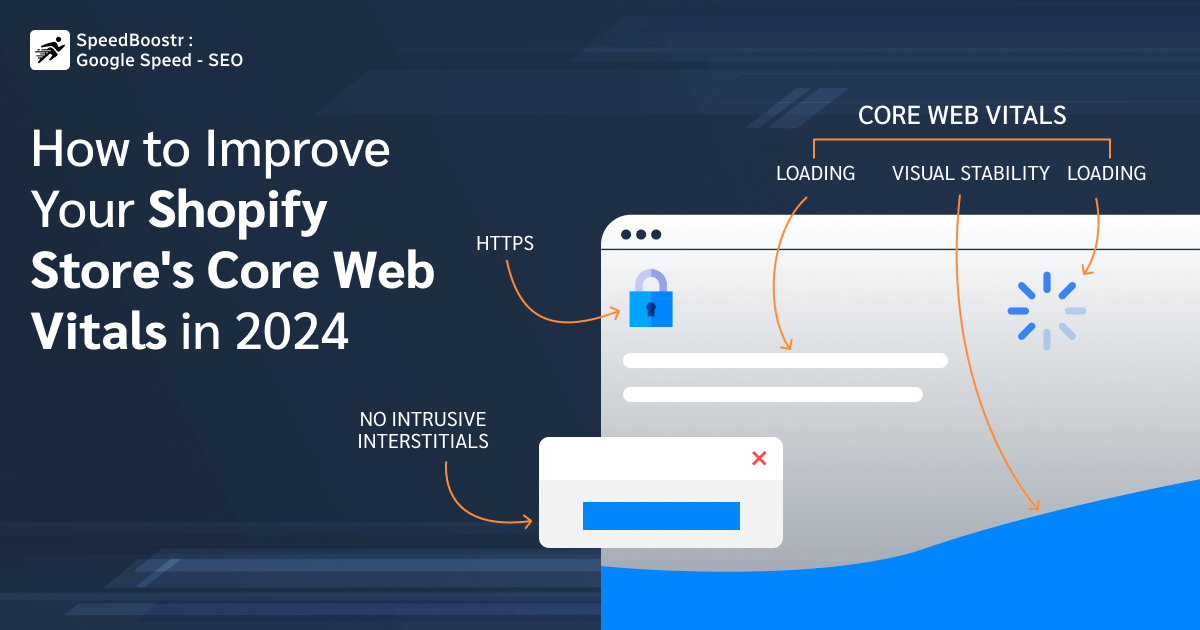
Your Shopify store might feel fast when you check it from your laptop. A shopper on mobile may get something different. The main product image takes longer to appear, Add to Cart pauses for a moment, or the page moves just as they are about to click.
These are the problems Shopify Core Web Vitals help uncover. The 2025 Web Almanac performance report found good overall Core Web Vitals on 48% of mobile sites, compared with 56% on desktop.
The three current metrics are LCP, INP, and CLS. Good results are LCP at 2.5 seconds or less, INP at 200 milliseconds or less, and CLS at 0.1 or less. Before changing the theme or removing apps, find out which one is actually struggling.
Start With Your Shopify Web Performance Report
A speed report can show a lot of numbers at once. You do not need to work through all of them. Start by narrowing the problem down.
Check:
- Which metric is poor?
- Is mobile worse than desktop?
- Which page type has the issue?
- When did the drop begin?
The timing is useful. If performance changed soon after a review app, popup, tracking script, or theme update was added, check that change first. Removing unrelated apps just adds more work.
Check Shopify LCP When the Main Content Appears Late
For LCP, ask what the shopper is waiting to see. On a product page, it is often the main product image. On the homepage, it may be a hero banner.
Once you know the element, look for the reason it is late:
- The image is much larger than needed
- The main image is lazy-loaded
- CSS or JavaScript holds it back
- The browser finds the image too late
Lazy loading is useful further down the page. It is usually the wrong choice for the main image a shopper needs immediately.
Look at Shopify INP When Store Actions Feel Slow
INP becomes easier to understand when you stop looking at the page and start using it.
Try a few normal shopping actions:
- Change a size or color
- Add the product to cart
- Open the cart drawer
- Use a collection filter
If these actions hesitate, check app JavaScript, review tools, chat widgets, tracking code, and heavy theme scripts. A page can appear quickly and still feel slow once a shopper starts using it.
Watch Shopify CLS When the Page Moves After Loading
For CLS, simply watch what happens after the page first appears. A common example is a review block loading late and pushing the price or Add to Cart button lower.
Look for things that appear after the rest of the page:
- Review or app blocks
- Images without set dimensions
- Promo bars
- Cookie notices
- Late-loading fonts
Leave enough space for these elements before they appear. The important content should stay where the shopper first saw it.
Use PageSpeed Insights for Shopify to Test Specific Pages
Shopify performance data and PageSpeed Insights are useful for different jobs. Knowing the difference prevents a lot of confusion when their numbers do not match.
| Tool | Best used for |
|---|---|
| Shopify reports | What real shoppers experienced over time |
| PageSpeed Insights / Lighthouse | Testing and investigating one specific page |
A practical workflow is:
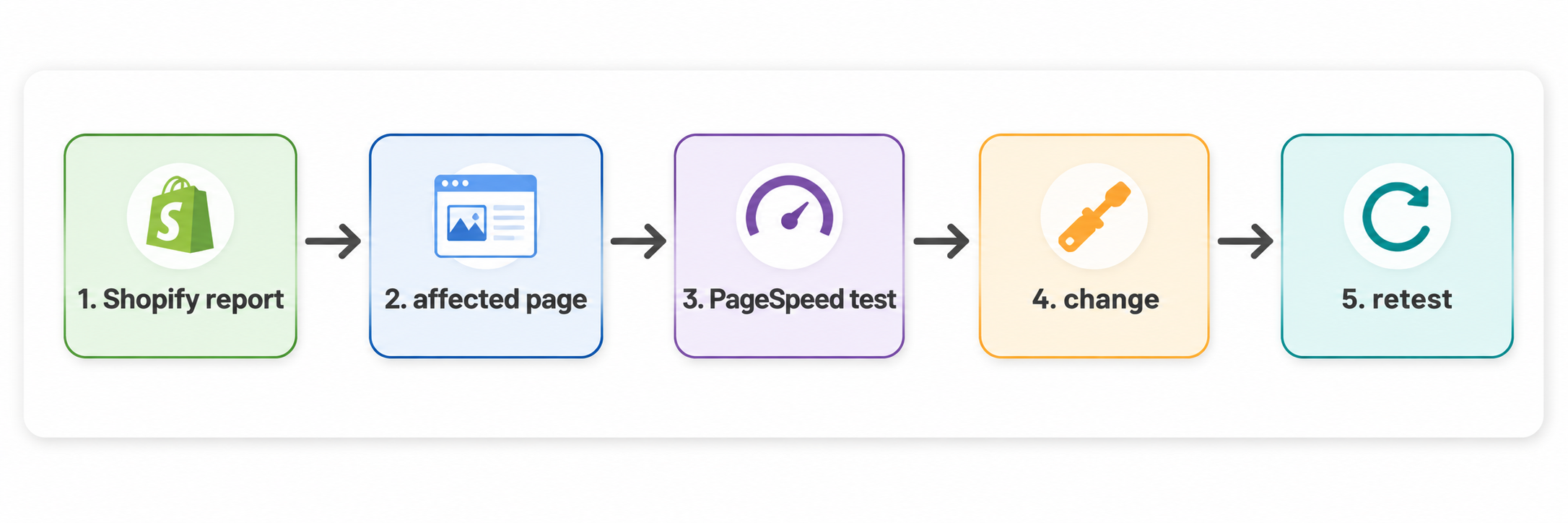
Do not stop at the homepage. Test an important product page and collection page too, especially on mobile.
When you know what needs work, SpeedBoostr can help with image optimization, suitable lazy loading, and CSS or JavaScript performance work without treating every speed warning as the same problem.
Conclusion
Better Shopify Core Web Vitals start with finding the actual problem. A late product image, delayed variant selector, and shifting review block need different work. Check the page shoppers are using, deal with the cause you find, and retest rather than spending time chasing a perfect PageSpeed score.

