

Your Shopify speed test says 88. Your product page still feels slow on your phone. Which one is right? Both can be. A speed test is a snapshot. Your store is a mix of pages, apps, images, scripts, and features, and they don't all behave the same way.
A homepage with a simple hero section may load nicely. A product page can tell a very different story with six large images, reviews, and recommendations. It also includes a sticky Add to Cart bar, analytics, and a few app scripts.
That's why the number at the top of a Shopify speed test isn't the first thing I'd look at. I'd look at what is making the page slow.
Why Shopify Site Speed Matters in 2026
A shopper doesn't see your PageSpeed score. They see the product image taking a while to appear. They tap a variant, and nothing happens for a moment. They scroll down, and the page shifts because another section has just loaded.
Those little delays add up. Shopify now focuses more on data from real users in its performance reports. Shopify's Web Performance Reports look at real visits to your store. So you get a better idea of how your store loads for people using different devices and internet speeds.
That also means you shouldn't check only your homepage. Test the pages people actually shop on, especially product and collection pages.
Quick check: Run the same page on mobile and desktop. It may load fine on your computer, but still feel slow on a phone.
Key Areas to Check in a Shopify Speed Test
1. Largest Contentful Paint (LCP)
LCP tells you when the main piece of content becomes visible. On a product page, that's often the main product image. On a homepage, it might be the hero section. A good LCP is 2.5 seconds or less.
If yours is slower, start by looking at what's holding that main content back. Large images are an obvious suspect, but fonts, video, and other resources can also get in the way.
There's no need to compress every image on the store just because LCP is poor. Find the resource connected to the slow content first.
2. Interaction to Next Paint (INP)
INP becomes important once the shopper starts interacting with the page. They choose a size, change a color, open the cart, and hit Add to Cart. The question is simple: how quickly does the store respond? A good INP is 200ms or less.
High INP often means the browser is busy doing too much work. Start with JavaScript if the store has several apps or third-party services running. Shopify also points merchants toward theme code, apps, and third-party scripts when investigating interaction performance.
3. Cumulative Layout Shift (CLS)
This is the one shoppers notice without knowing what it's called. You're about to tap a button. A banner loads, and the page moves. You hit something else. That's CLS, so keep it at 0.1 or below.
Images without reserved space, popups, banners, and content injected by apps can all cause these shifts. On a busy storefront, it's worth checking what loads after the initial page rather than assuming the theme is responsible.
4. Time to First Byte (TTFB)
TTFB looks at how long it takes to receive the first response after requesting the page. It can help when a page feels slow before anything useful has appeared.
Around 800ms or less is generally considered good. But this isn't a number where you should immediately start changing the theme code. Some parts of TTFB aren't controlled by the merchant, so treat it as a diagnostic clue rather than a shopping-list item.
5. First Contentful Paint (FCP)
FCP measures when the browser first puts visible content on the screen. It can help explain that frustrating blank moment before a page starts showing anything.
A good FCP is 1.8 seconds or less. If it's slow, check what's delaying the first render. Blocking scripts, fonts, and other resources can all play a part.
JavaScript and Third-Party Scripts
If you're asking why is my Shopify store slow, don't automatically point at the theme. Look at everything that's been added to the store since the theme was installed.
Review apps, chat widgets, tracking pixels, analytics, product recommendations, subscriptions, and other tools can all add JavaScript. That doesn't mean you should remove them.
An app can be important to the business and still need a performance review. The better question is whether its scripts are doing unnecessary work, loading too early, or affecting pages where the feature isn't needed.
7. Page Size and Heavy Resources
Large product images are often the first thing merchants find when they start looking at Shopify page speed. But check beyond images. Videos, fonts, scripts, app assets, and other files add weight or browser work too.
Look at what the page loads before the shopper can actually use it. If a resource belongs to something far down the page, it may not need to be loaded immediately.
How to Improve Your Shopify Site Speed After a Test
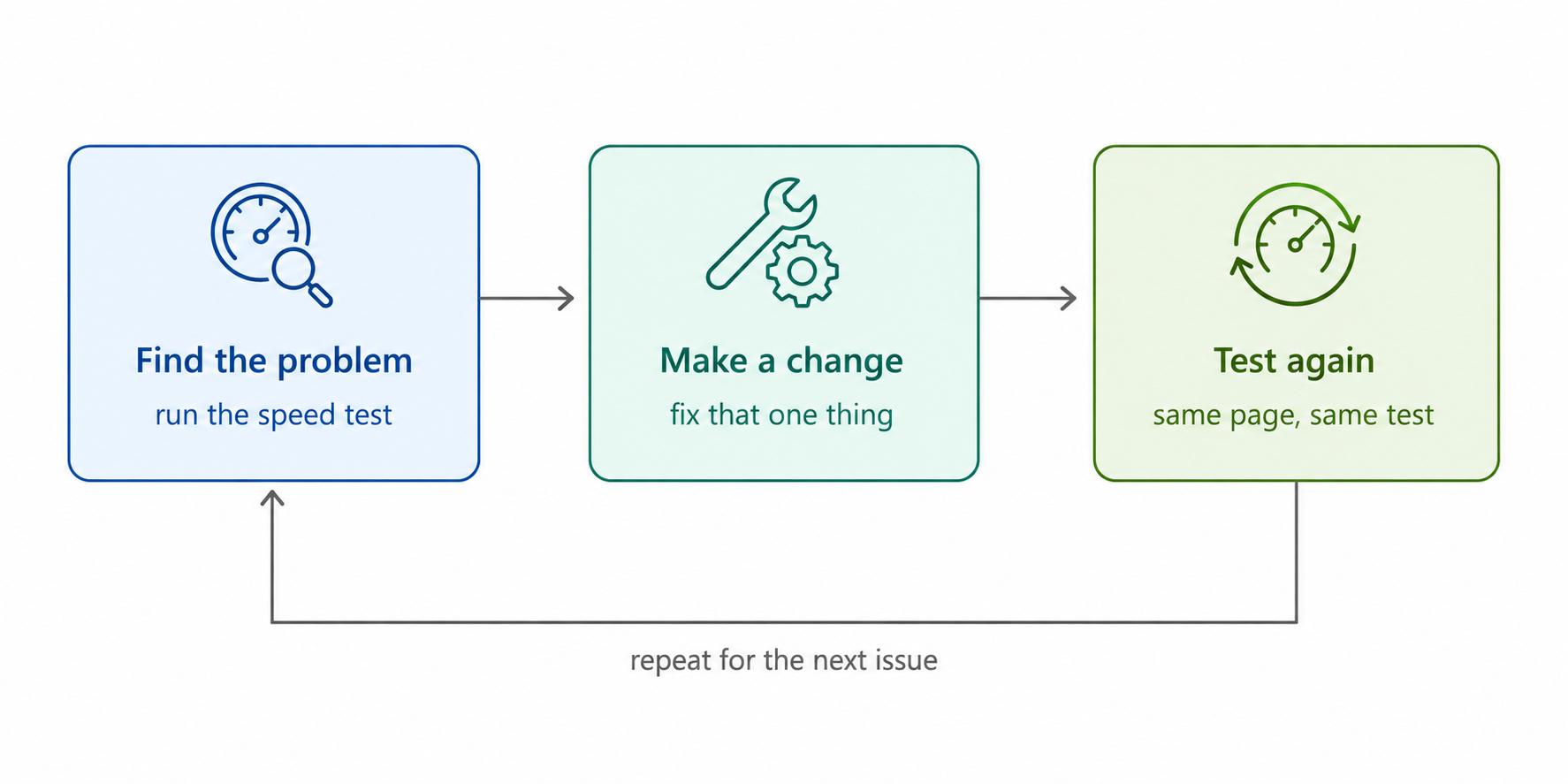
Once you know what's causing the slowdown, don't change five things at once. That's an easy way to lose track of what actually helped.
If a large product image is hurting LCP, work on that image. If JavaScript is holding back INP, look at the scripts creating the work. If the page is carrying too many resources, decide which ones really need to load straight away.
Then test the page again. That's the part of Shopify site speed optimization that tends to work better in practice:
If you don't want to handle every optimization manually, SpeedBoostr can help with parts of the process, including image optimization and JavaScript-related performance improvements. It can fit into the same workflow rather than replacing the testing and diagnosis step.
One thing worth remembering: Don't remove a useful store feature just to make a speed score look better. Performance work is about finding a sensible balance between storefront features and the work they make the browser do.
Conclusion
A Shopify store speed test gives you a starting point, not a reason to rebuild your store. Start with LCP, INP, and CLS, then look at the images, scripts, apps, and other resources behind those numbers. Check your important product and collection pages too, because performance can vary quite a bit from one page to another.
Not sure what's slowing your Shopify store down? Start with a free SpeedBoostr site audit by Weplanex: https://support.webplanex.com. It can help you spot the performance issues worth looking at first, so you can stop guessing and start fixing the right things.

